Azure
Available nowSpeech, voices, and optionally translation. This guide explains the account creation flow, resource creation, and where to find the key and region.
Open Azure guideThis page is for technicians and operators who want to connect their own AI providers to Interpreter24. Azure is documented step by step today. The other provider pages are prepared and linked below so they can be completed later without changing the structure.
Use this page to identify which external services you want to connect. Open Interpreter24 and go to Settings: you will find there the links to the signup pages of each AI provider. Click on the provider you want to connect and follow the instructions here to obtain your API key.
Speech, voices, and optionally translation. This guide explains the account creation flow, resource creation, and where to find the key and region.
Open Azure guideTranslation provider setup page will be added here.
Open provider siteSpeech recognition setup page will be added here.
Open provider siteDaily account and API setup page will be added here.
Open provider siteSpeech recognition setup page will be added here.
Open provider siteLanguage model setup page will be added here.
Open provider siteVoice synthesis setup page will be added here.
Open provider siteMicrosoft Azure services are used in Interpreter24 for voices, translation optionally, and speech recognition optionally.
Start here: Try Azure for free
Open the Azure sign-up page, choose the free option, create your account with an email address, verify the email code, and complete the personal information fields.
Azure asks for address and card details during account creation. The source document notes that the account starts with free credit.
From the Azure portal, open the menu, choose Create a resource, search for Speech, and open the Microsoft Azure Speech service creation flow.
Create a new resource group if needed, choose the name you want for the resource, and keep the rest aligned with the Speech setup shown in the screenshots.
Click Review + Create, wait for Azure validation to complete, and confirm with Create.
Return to the home page, scroll down to your resources, open the Speech resource you created, and copy one of the API keys together with the location region into Interpreter24.
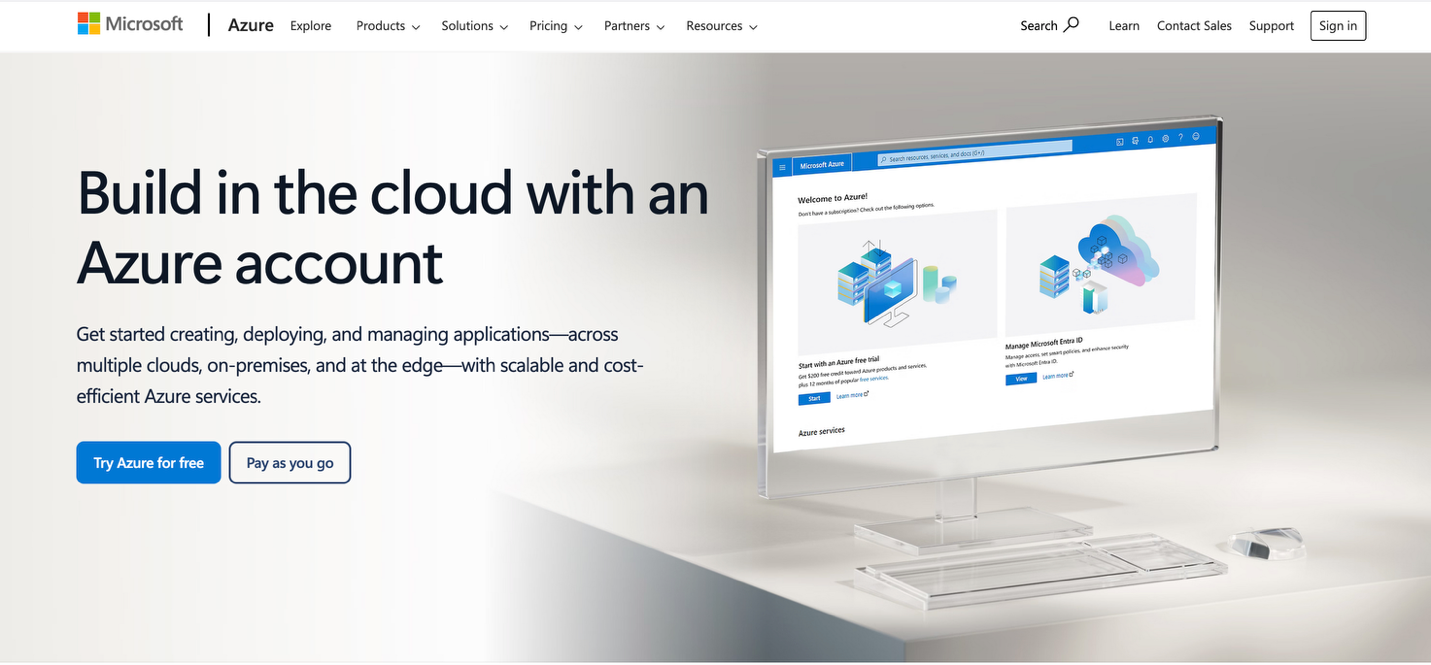
Go to the Azure account page and click the free trial option.
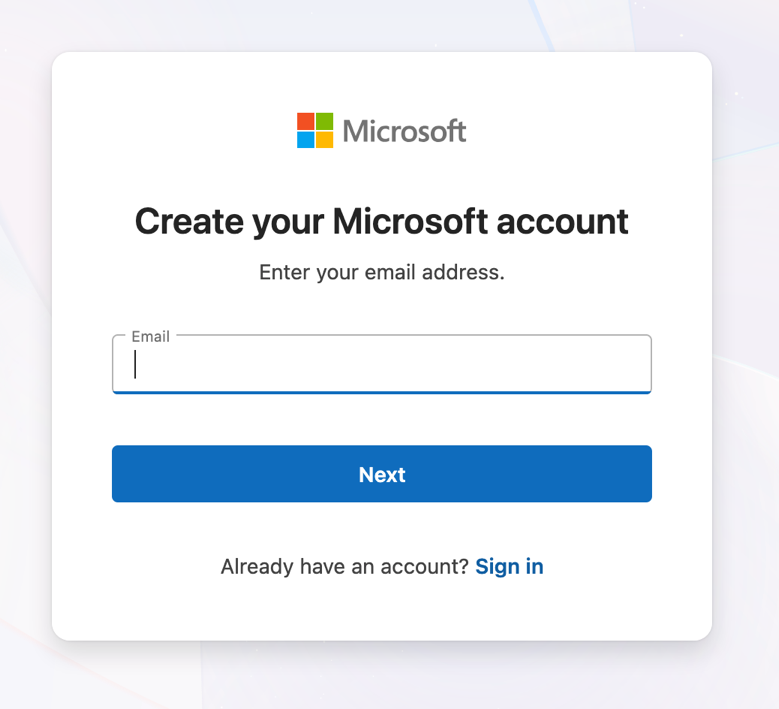
Enter your email address and continue with verification.
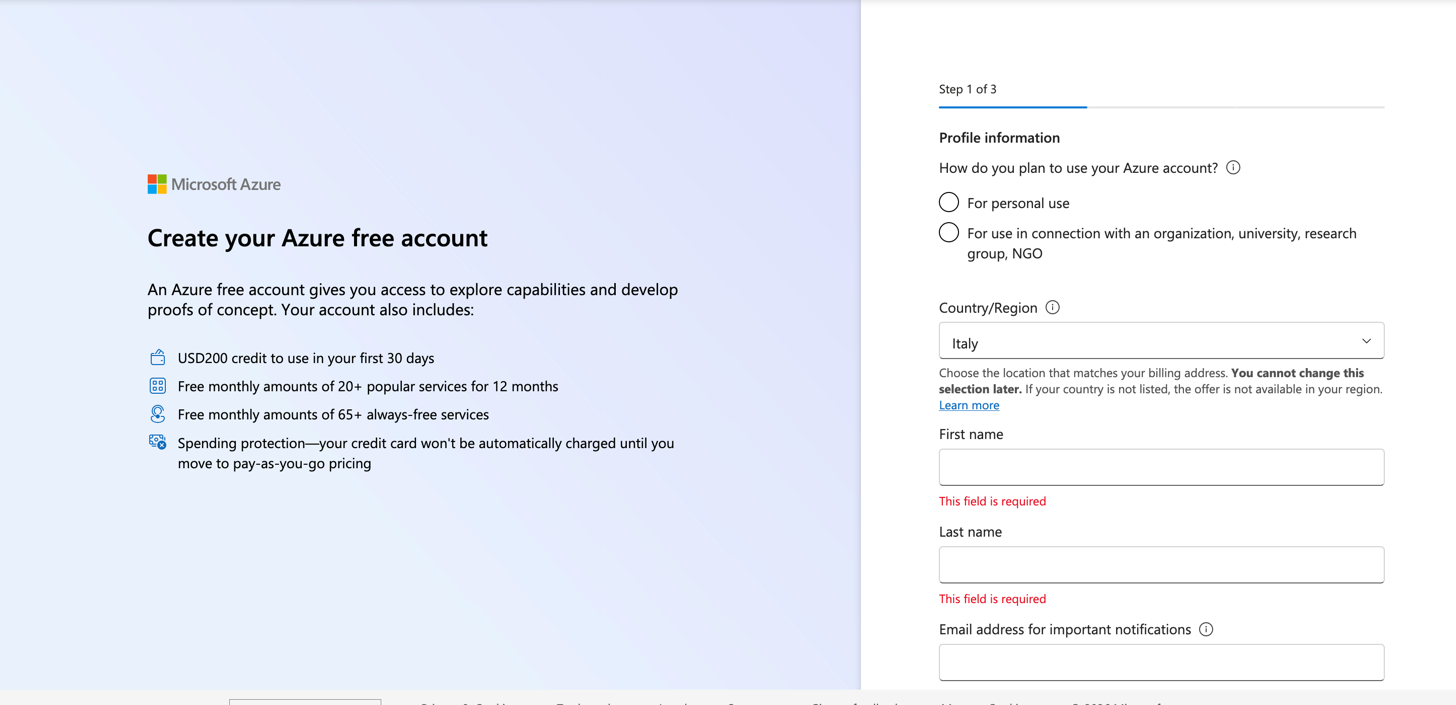
Finish the three signup steps, including address and card details.
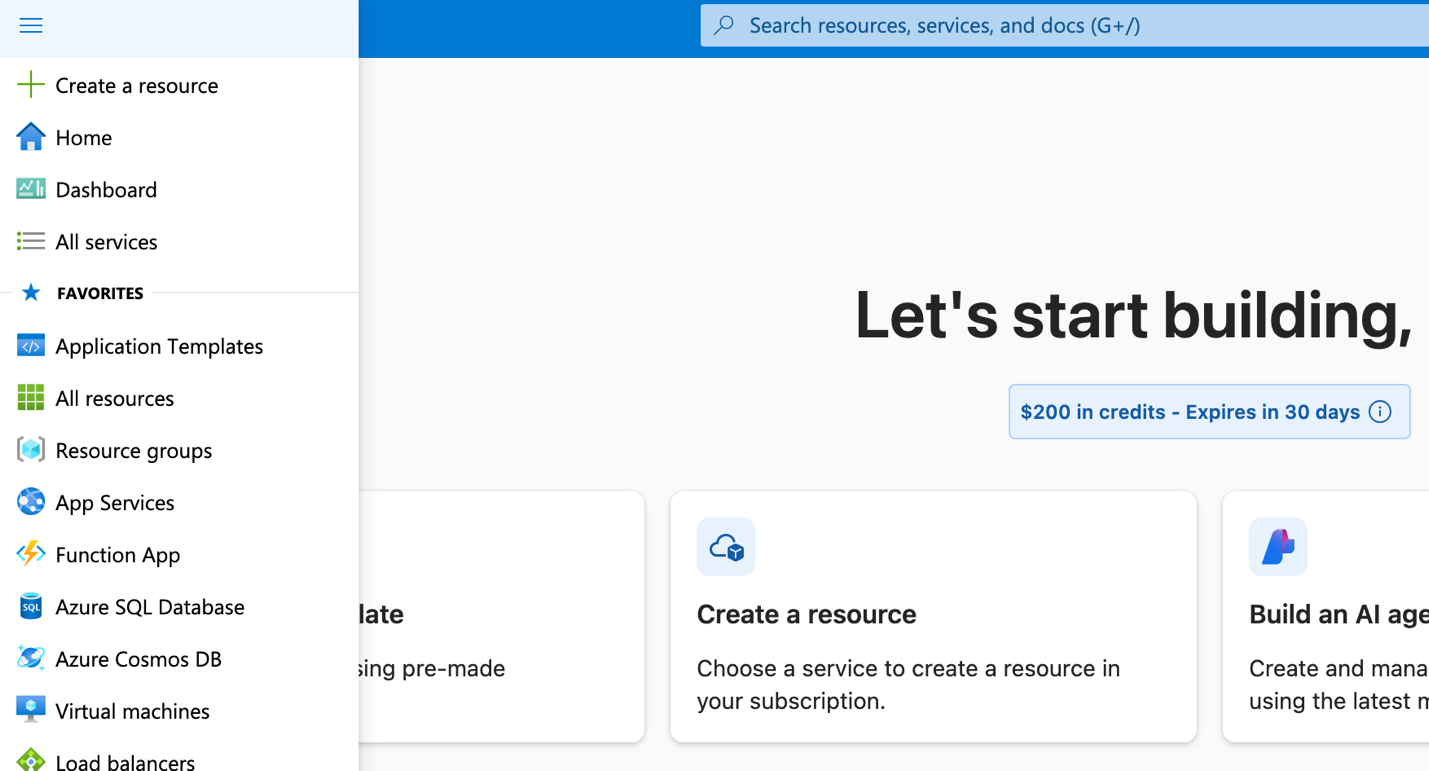
Open the top-right menu and choose Create a resource.
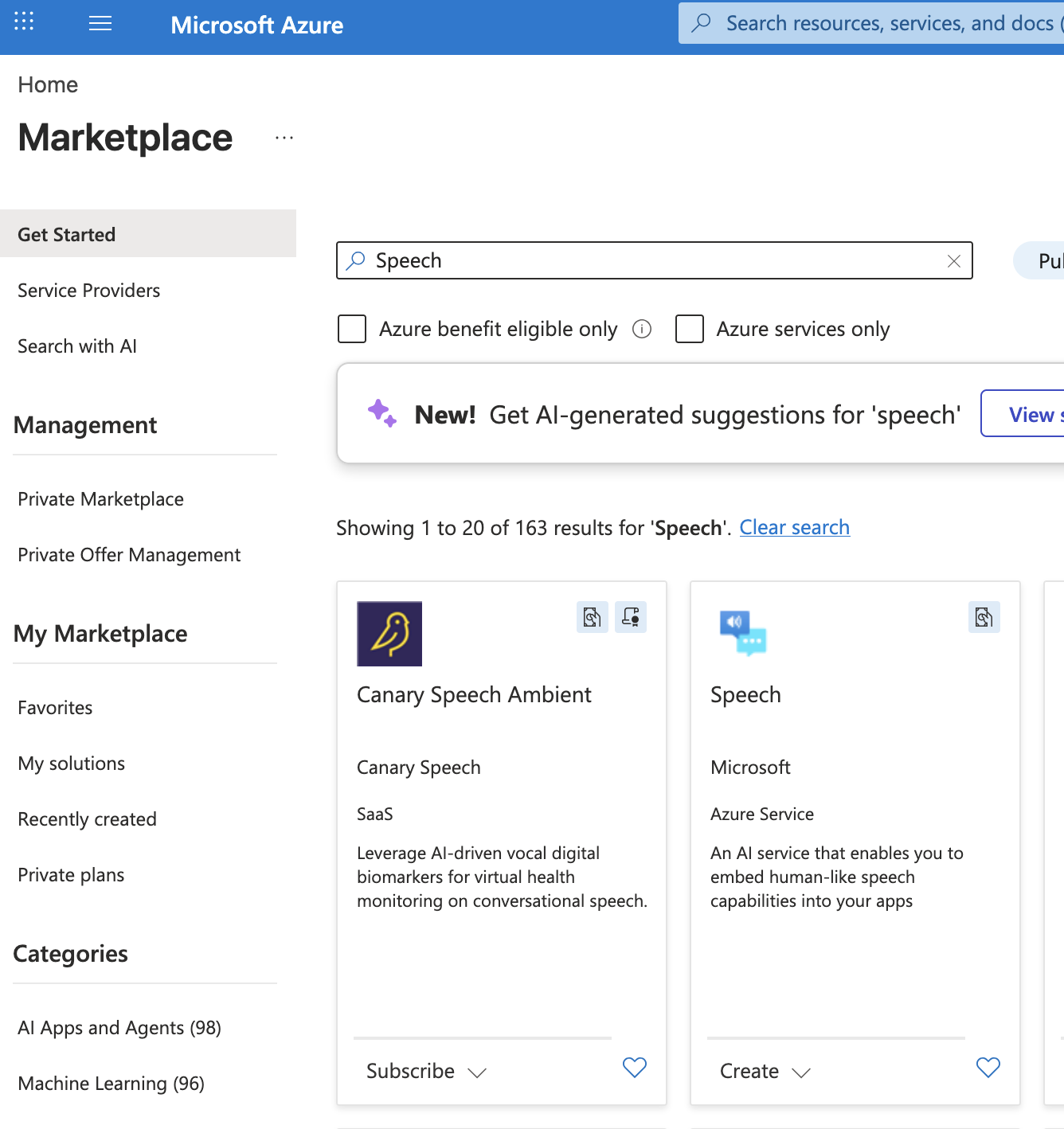
Search for Speech and open the Microsoft Azure Speech service.
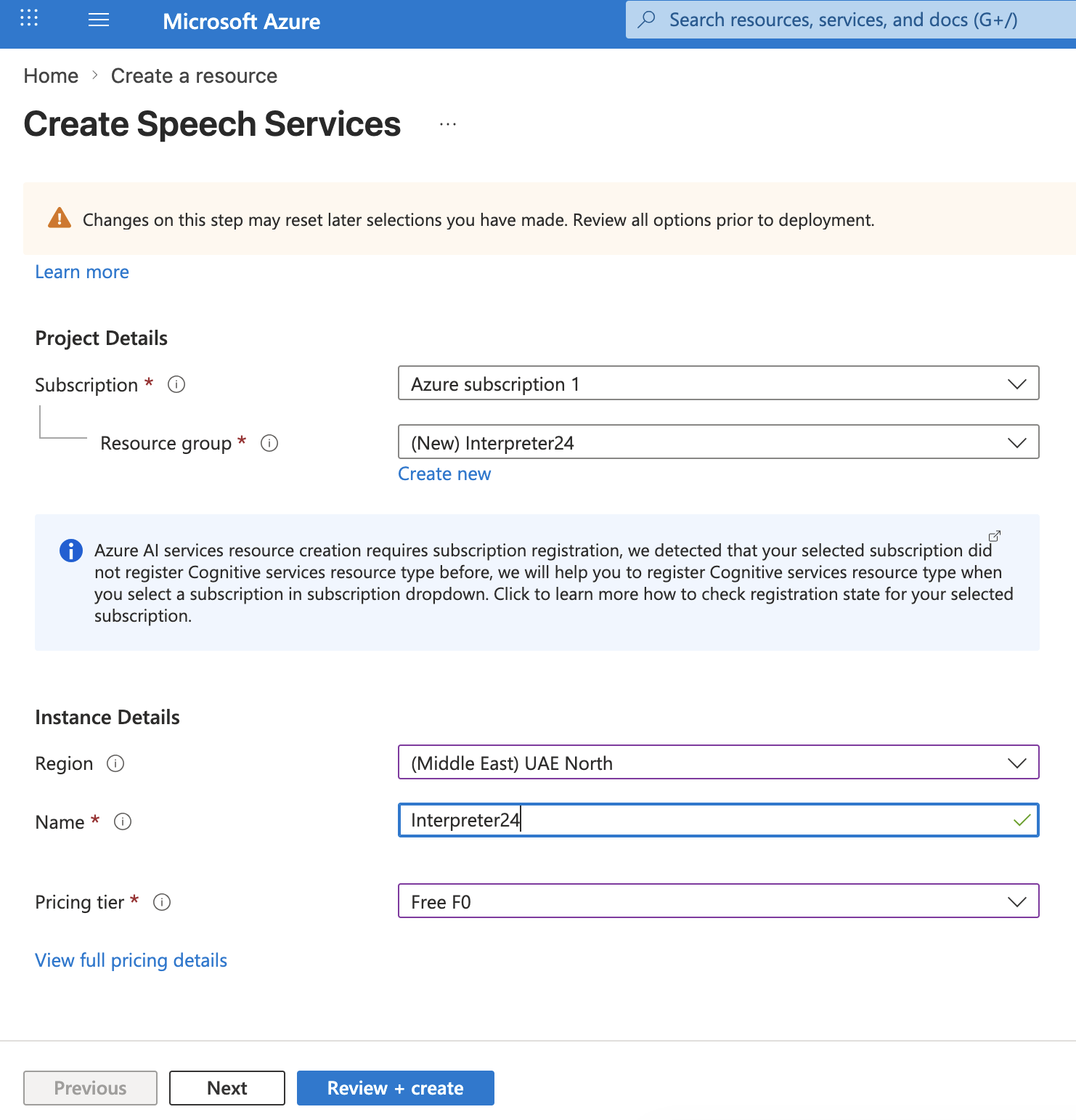
Create the resource group if needed, choose a resource name, then continue with Review + Create.
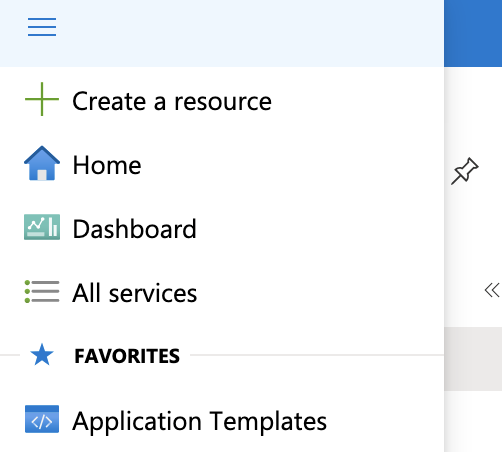
Open the menu again and return to Home.
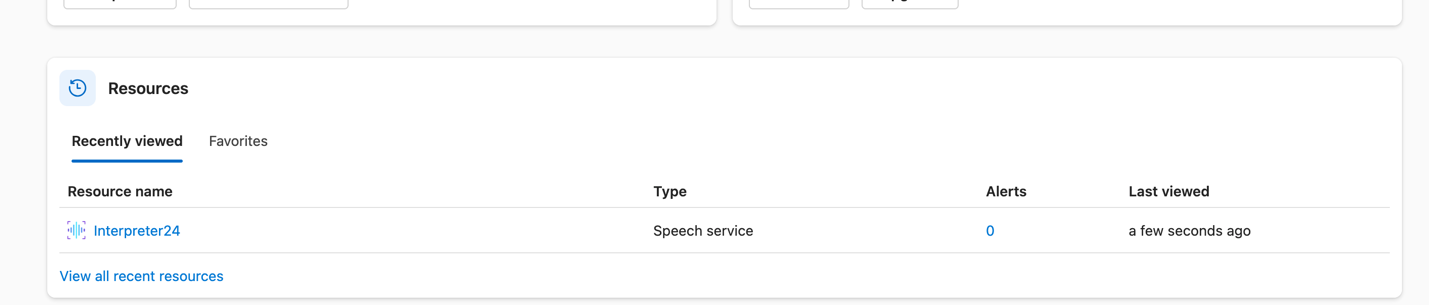
Scroll down to your resources, open the one you created, then copy one API key and the location region into Interpreter24.
Coming: dedicated step-by-step pages for DeepL, Speechmatics, Daily, AssemblyAI, OpenAI, and ElevenLabs.
For now, use the provider links above or contact info@interpreter24.com if you need guided setup.