Create a new session
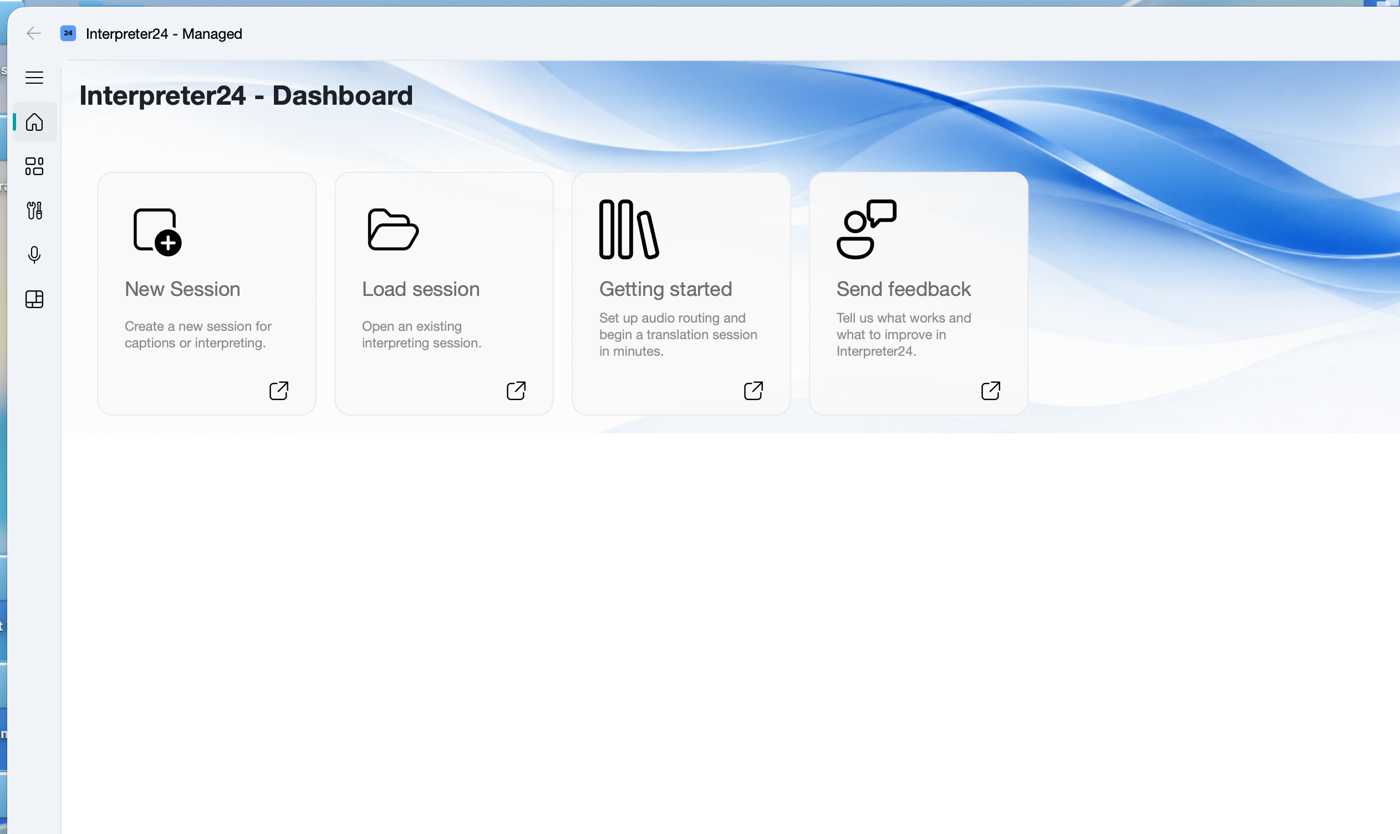
Open Interpreter24 and choose New Session. The wizard will guide you through the setup.
This is the simplest way to test the app: play a YouTube video on your computer, let Interpreter24 listen to the computer audio, then open the QR code on your phone and listen to the translated audio.
Use a computer where Interpreter24 is installed and licensed. Keep your phone nearby. For this quick test, you do not need microphones, mixers, or external audio hardware.
Open Interpreter24 and choose New Session. The wizard will guide you through the setup.
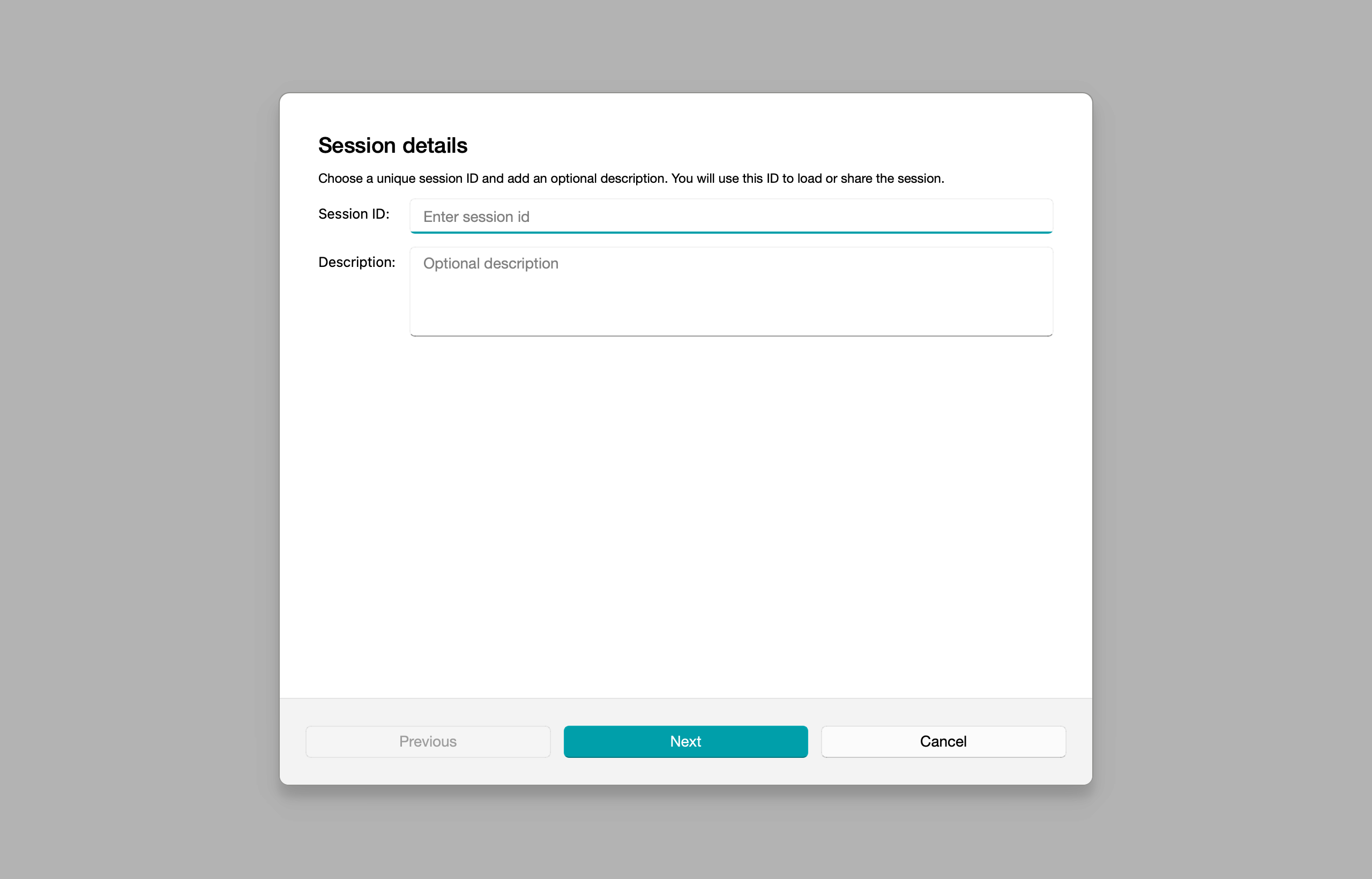
Select the spoken language of the video as the source language. Add one or more target languages you want to listen to on the phone.
In the Broadcast setup page, set Source device to System Audio. This lets Interpreter24 hear the YouTube video playing on the computer.
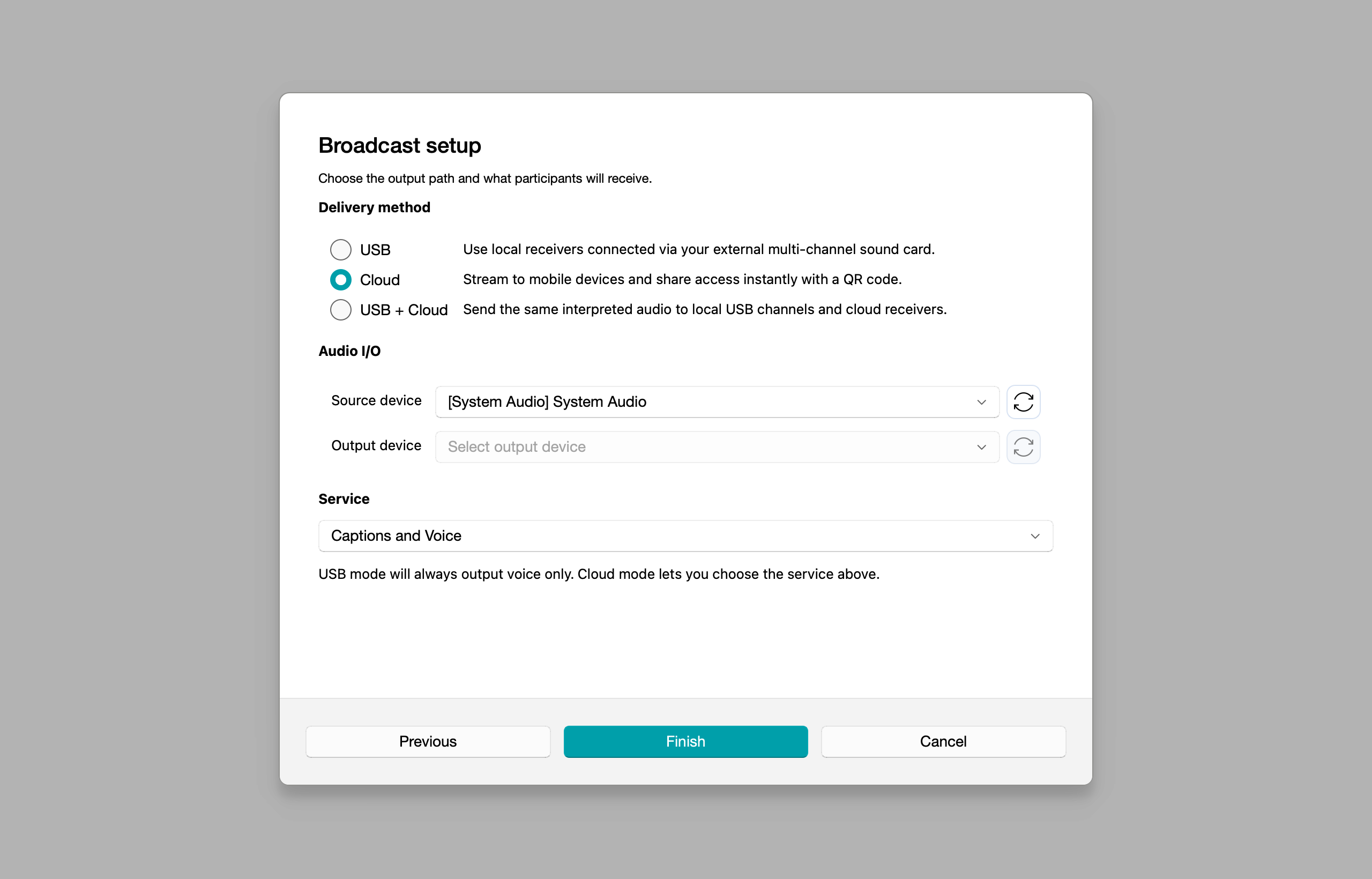
Select Cloud as the delivery method. Keep the service as Captions and Voice, then finish the wizard.
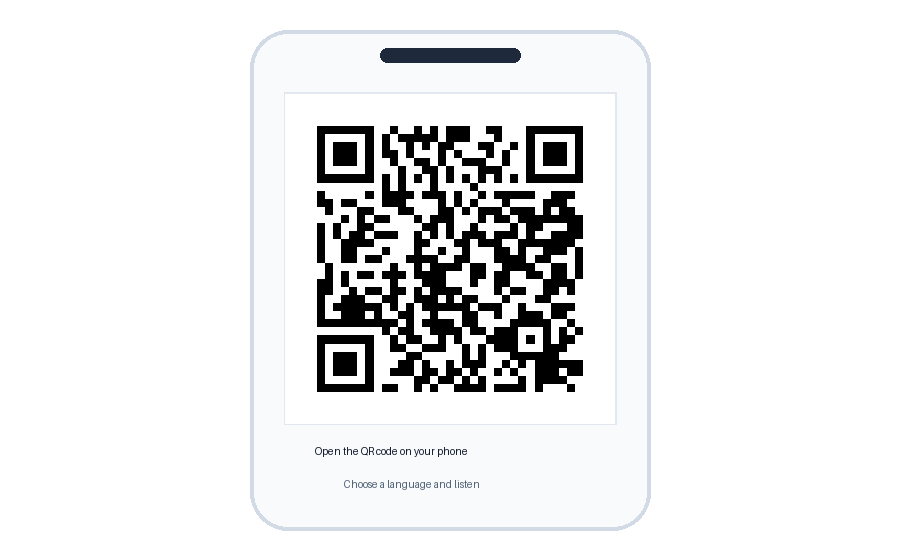
After the session opens, scan the QR code with your phone. Choose the target language and keep the phone audio on.
Start any video with clear speech. After a short moment, you should hear the translated audio on the phone.